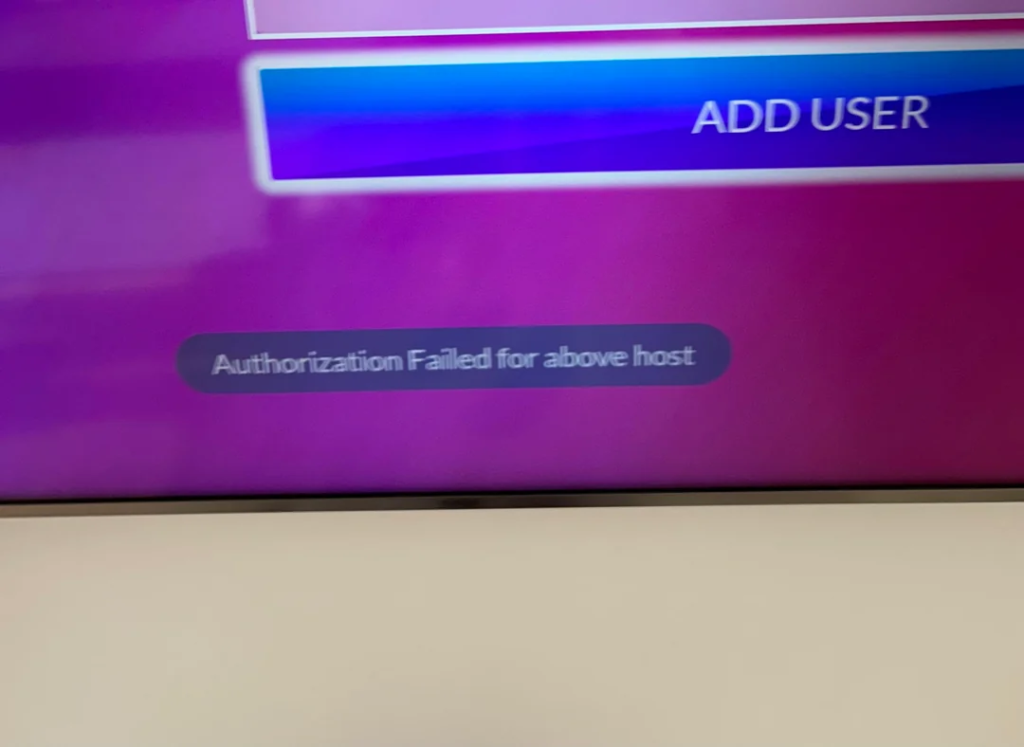
"Authorization failed for above host" is IPTV Smarters Pro telling you that it reached your provider's server, but the server didn't accept the login. Most of the time the cause is simple: a typo in the login details, an expired subscription, or the account already playing on another device. Work through the fixes below in order; each one takes a minute.
What the error means
When you add a user in IPTV Smarters Pro, the app sends your username and password to the server address you entered. The server can refuse because:
- a detail is wrong (server address, username or password);
- the subscription has expired, or the login was changed after a renewal;
- the account is already in use on as many devices as the plan allows;
- the server can't be reached properly from your network or through your VPN.
Fixes, in the order to try them
1. Check the three login details
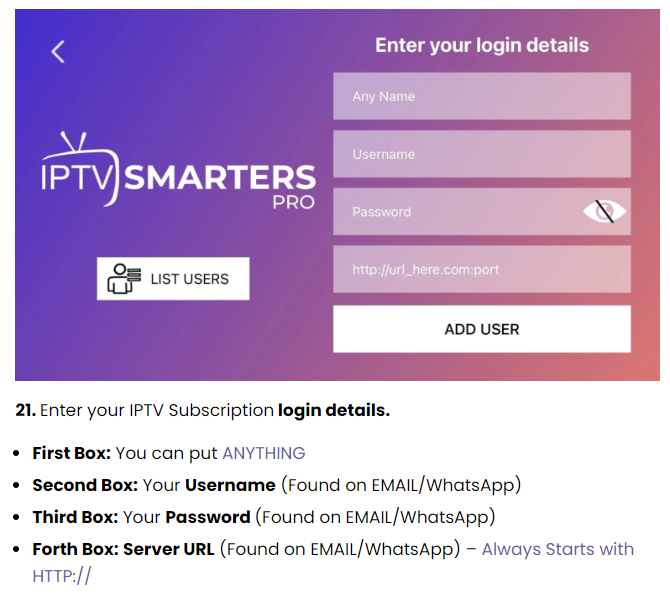
- Server URL: it starts with
http://and usually ends with a port number, such as:80or:8080. No space at the start or end, and no extra slash. - Username and password: they're case-sensitive. A capital letter or a zero instead of the letter O is enough to fail.
- Copy and paste the details from your provider's email or message instead of typing them. On a TV, typing on the phone helps: 1ClickTV Player, for example, lets you scan a QR code and type on your phone.
2. Check that the subscription is active
An expired account gives the same error. If you've just renewed or changed plan, your provider may have sent new login details; delete the old user in the app and add it again with the new ones.
3. Close the app on your other devices
Every plan allows a set number of streams at the same time. If the account is playing elsewhere, the server can refuse a new login. Stop it on the other devices, wait two or three minutes, and try again.
4. Restart the device and the router
Turn the TV or streaming device off at the wall for a minute, and restart your router. It clears stuck connections more often than you'd expect.
5. Switch off your VPN
Many IPTV servers refuse connections from VPN addresses. Turn the VPN off and log in again. If you want to keep it, ask your provider which locations work.
6. Try another network
Connect the device to your phone's hotspot and log in again. If it works on mobile data but not at home, the problem is on your home network: restart the router again, and tell your provider, who can check whether the server is reachable from your internet provider.
7. Clear the app's data or reinstall it
- Android TV, Fire TV, Android: Settings → Apps → IPTV Smarters Pro → Clear cache, then open the app and add the user again.
- Samsung, LG, iPhone, Apple TV: delete the app and install it again from the store.
Only install IPTV Smarters Pro from your device's app store or the developer's site, not from copies on other websites.
8. Test the login in another app
Add the same details to another player, such as 1ClickTV Player on Android devices or TiviMate. If the login works there, the problem is the Smarters installation; if it fails everywhere, it's the account or the server, and your provider has to fix it.
Other messages and what they mean
| Message | Usual cause | What to do |
|---|---|---|
| Authorization failed for above host | Wrong details, expired account or account in use | Fixes 1 to 3 above |
| Invalid username or password / Login invalid | A typo, or an old password after a renewal | Copy the details again from your provider |
| Your account is expired | The subscription has ended | Renew, then log in again |
| Max connections reached | The plan's streams are all in use | Stop playback on other devices and wait a few minutes |
| Network error / Unable to connect | No connection to the server | Check the server address and your internet, then fixes 4 to 6 |
When to contact your provider
If none of this works, send your provider:
- the exact error message, ideally a photo of the screen;
- the device and app you use;
- when the problem started, and whether it works on another device or network.
1ClickTV subscribers can reach our support team 24/7 on WhatsApp, Telegram or email.
Questions people ask
Why does it work on my phone but not on my TV?
Usually a typo on the TV, the TV being on another network (or a VPN), or the phone already using the plan's only connection.
Do I need a new login after renewing?
Sometimes. Some providers keep the same login and others send new details; check the message you received after renewing.
Is "Authorization failed" a problem with the app?
Rarely. The message comes from the server's answer, so the cause is almost always the login details, the account or the connection.