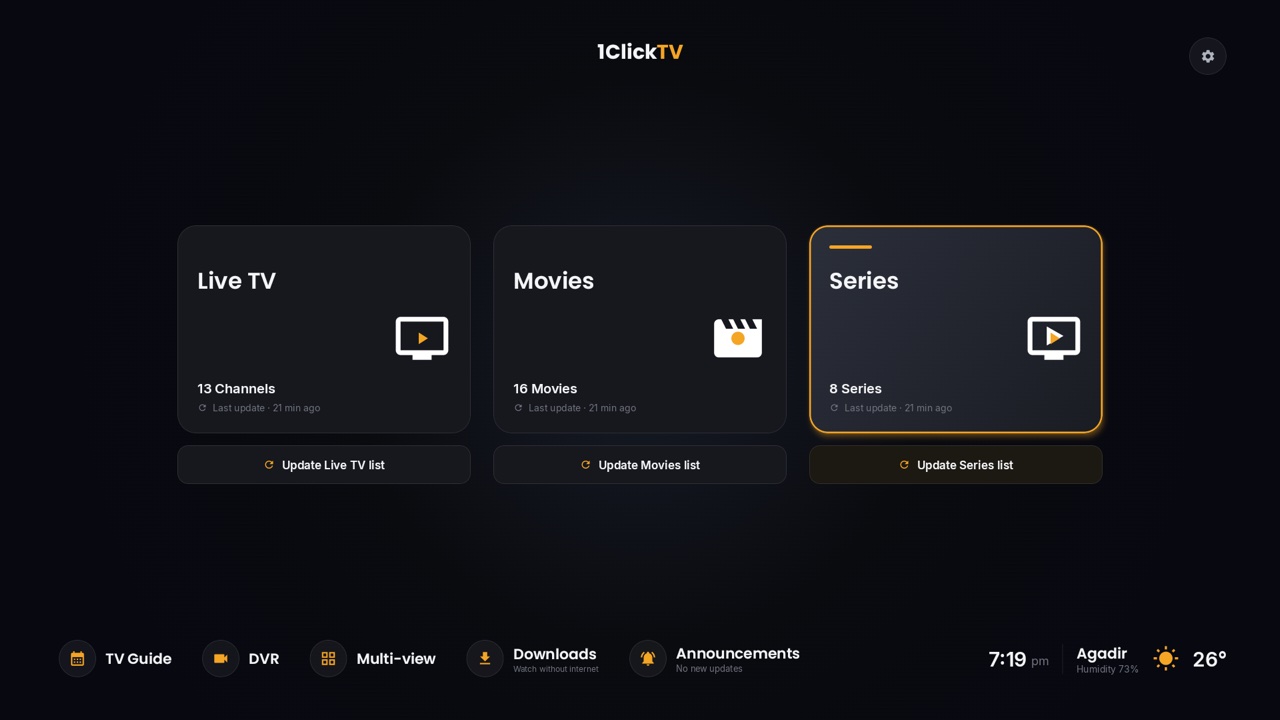
Catch-up lets you watch a programme after it has aired, straight from the TV guide, without recording it first. It's one of the most useful IPTV features, and one of the most misunderstood: it only works on some channels, with some apps, and only for a few days back. Here's how it works and how to use it in the main IPTV players.
How catch-up works
For some channels, your IPTV provider keeps an archive of what was broadcast over the last few days. In the TV guide, past programmes on those channels become playable: you pick one and it starts from the beginning, with pause, rewind and fast-forward. Apps call it catch-up, TV archive, replay or timeshift.
Catch-up, recording or restart?
| Catch-up | Recording (DVR) | Watch from the start | |
|---|---|---|---|
| Where it's stored | At your provider | On your device or drive | At your provider |
| Which channels | Only channels with an archive | Any channel you can watch | Only channels with an archive |
| How long it stays | Usually a few days, set by the provider | As long as you keep the file | While the programme is on |
| Plan ahead? | No | Yes, you set it up before | No |
What you need
- A provider that offers catch-up on the channels you want. 1ClickTV offers catch-up and a TV guide for US and European channels; how far back you can go depends on the channel.
- An app that supports catch-up, such as the ones below.
- The TV guide loaded, because catch-up uses the guide's times to find each programme.
- Usually an Xtream Codes login rather than a plain M3U link: most apps get the catch-up details from it automatically.
How to use it
1ClickTV Player
- On the home screen, open Catch-up (next to DVR).
- Pick a channel and a day, then any programme. It plays from the start, with pause and skip.
- In the TV guide, aired programmes also show Watch catch-up, and the programme on now offers Watch from the start.
1ClickTV Player is free on Android TV, Google TV, Fire TV, phones and tablets.
TiviMate
- Open the TV guide and move left, back in time, on a channel that shows the catch-up icon.
- Select a programme that has already aired and choose Play.
Catch-up is part of TiviMate Premium. See how to set up TiviMate.
IPTV Smarters Pro
- On the home screen, open Catch Up.
- Choose a channel, then a day, then the programme.
Kodi
- In PVR IPTV Simple Client's settings, open the Catchup tab and enable catch-up.
- Restart Kodi, then open TV → Guide and select a programme that has already aired.
New to Kodi? Start with how to add an IPTV playlist to Kodi.
When catch-up doesn't work
- The channel has no archive. Look for the catch-up icon or the channel's catch-up flag; channels without one can't be replayed.
- The programme is too old. Archives only go back a few days.
- The wrong programme plays, or it starts in the middle. The guide's times are off. Check your device's time zone and the app's guide time shift setting.
- Nothing happens with an M3U link. Plain playlists often lack catch-up details; use your Xtream Codes login instead.
- The app has no catch-up option. Not every player supports it, and some only in a paid version.
Questions people ask
How many days back does catch-up go?
It depends on the provider and the channel; a few days is typical. Your app shows how far back each channel goes when you move left in the guide.
Does catch-up use storage on my device?
No. The programmes stay on the provider's servers; you stream them like a live channel.
Can I fast-forward with catch-up?
Yes. Unlike live TV, a catch-up programme can be paused, rewound and fast-forwarded.
Is catch-up the same as recording?
No. Recording saves a copy you keep; catch-up plays the provider's archive for a limited time. To record, see how to add IPTV to Plex or use an app with a DVR, such as 1ClickTV Player.