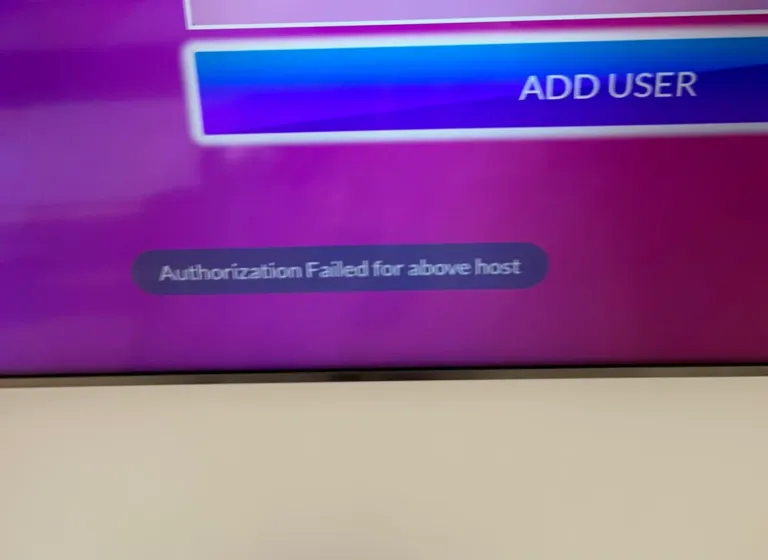
Are you experiencing the dreaded “Authorization Failed for Above Host” or “Login Invalid” error while using IPTV Smarters Pro? These issues can disrupt your streaming experience, but don’t worry—we’ve got you covered. Follow this comprehensive troubleshooting guide to resolve the problem quickly.
1. Check Your Internet Connection
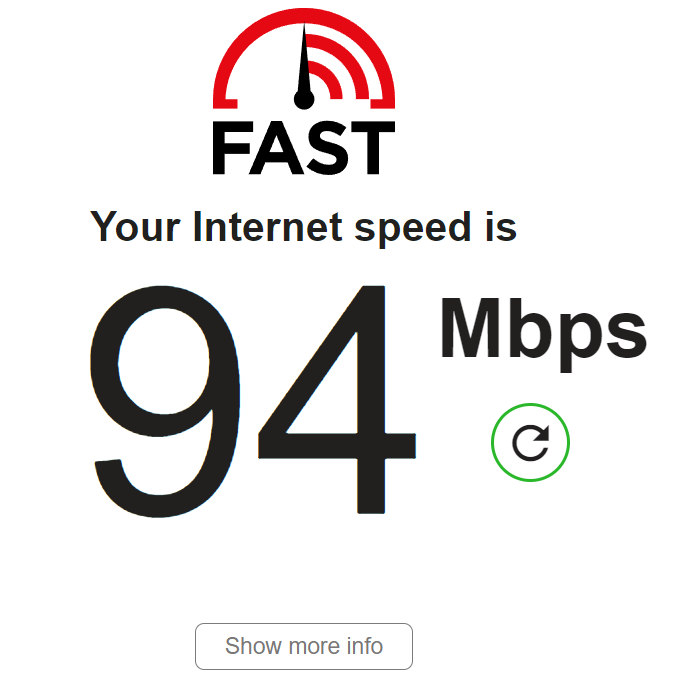
A stable internet connection is crucial for seamless IPTV streaming. To avoid buffering and login errors, ensure your connection meets the following speed requirements:
- SD Streaming: At least 5 Mbps
- HD Streaming: At least 15 Mbps
- 4K Streaming: At least 25 Mbps
If your internet is slow or unstable, try restarting your router. For better performance, use a wired Ethernet connection instead of Wi-Fi. You can test your internet speed at Fast.com.
2. Verify Your IPTV Login Credentials
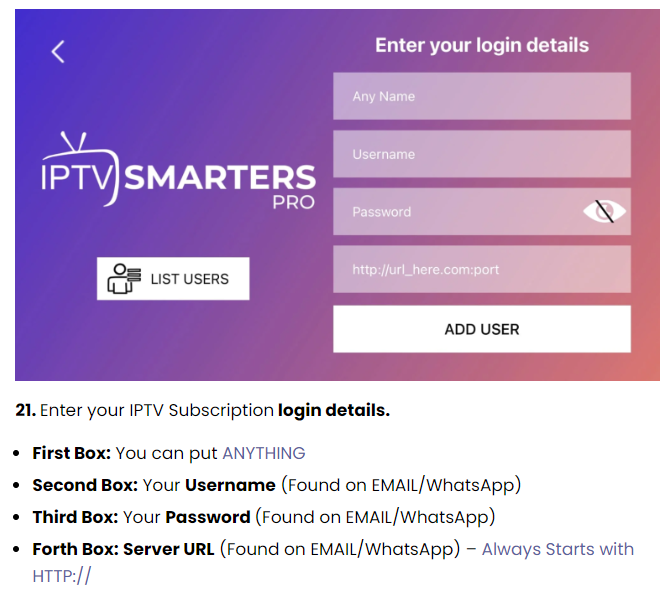
Incorrect login details are one of the most common reasons for authorization errors. Double-check the following:
- Server URL: Ensure it starts with
http://and is entered correctly. - Username & Password: These are case-sensitive—make sure there are no typos or extra spaces.
- Subscription Renewal: If you’ve recently renewed your IPTV subscription, confirm that you’re using the latest credentials provided by your provider.
Copy and paste the details instead of typing them manually to avoid mistakes.
3. Disable or Adjust Your VPN
A VPN can sometimes interfere with IPTV connections, leading to login failures. Try these fixes:
- Disable the VPN temporarily to see if it resolves the issue.
- If you must use a VPN, connect to a server in the same country where your IPTV account was registered.
- Check with your IPTV provider for a list of recommended VPNs that work without issues.
4. Update Your IPTV App Settings
Sometimes, an outdated or incorrect server URL can cause login errors. Here’s how to fix it:
- Contact your IPTV provider for the latest server URL.
- Update the server URL in your IPTV Smarters Pro settings.
- Clear any old cache and restart the app.
Keeping your app settings updated helps avoid common login issues.
5. Bypass ISP Blocking
Some Internet Service Providers (ISPs) block IPTV traffic, which may prevent you from logging in. Here’s how to bypass ISP restrictions:
- Change your DNS settings to public DNS providers like Google DNS (8.8.8.8, 8.8.4.4) or Cloudflare DNS (1.1.1.1).
- Update your DNS settings in your router or device settings.
- Contact your IPTV provider for backup server URLs that bypass ISP restrictions.
Using a VPN (if allowed by your provider) can also help bypass ISP blocks.
6. Clear Cache and Update the App
Old or corrupted app data can cause login issues. Try these solutions:
- On Android: Go to Settings > Apps > IPTV Smarters Pro > Clear Cache.
- On iOS: Uninstall and reinstall the app from the App Store.
- Ensure you have the latest version of the app downloaded from an official source.
Regular updates help maintain compatibility with IPTV servers.
7. Check Device Compatibility

Not all devices are fully compatible with IPTV Smarters Pro. If you’re experiencing login errors:
- Ensure your Android, Smart TV, Firestick, or MAG Box is running the latest firmware.
- Try logging in from another device to see if the issue is device-specific.
If the issue persists, consider using a different IPTV app like TiviMate or XCIPTV.
8. Contact Your IPTV Provider
If none of the above solutions work, reach out to your IPTV provider’s support team. Provide them with the following details:
- Your MAC address or Subscriber ID
- The exact error message you’re seeing
- A screenshot of the issue (if possible)
- Details about when the error started occurring
Your provider may be able to reset your account or provide alternative solutions.
Final Thoughts
By following these troubleshooting steps, you should be able to fix the “Authorization Failed for Above Host” error in IPTV Smarters Pro and get back to enjoying your favorite content. If the problem persists, contacting your provider is the best course of action.
For more IPTV guides and troubleshooting tips, stay tuned to our blog!